Filtering Unsolicited Email (Spam) to the Trash - Eudora 5.0 As you use the Internet more and more and give out your email address, you will begin to get lots of email, sometimes from random places you've never heard of before. Such unsolicited mass emails are known in Internet jargon as Spam. You always seem to get it when you don't want any. You may also get an overwhelming amount of email from friends and family. Shouldn't there be a way to avoid getting swamped?
There is. Filters are a great way of organizing this influx of email. Rather than just letting emails pile up in your Inbox, you can create new folders and assign rules for your email program to sort incoming email. 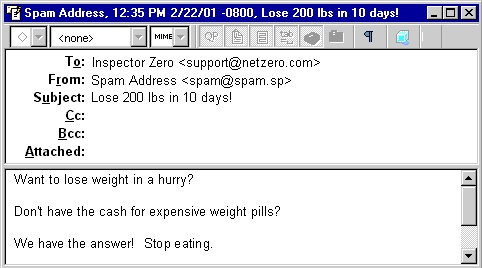 To automatically send unwanted Email to the Trash: - Locate the email message from the sender who you want to filter.
- Go to the Special menu and select Make Filter.
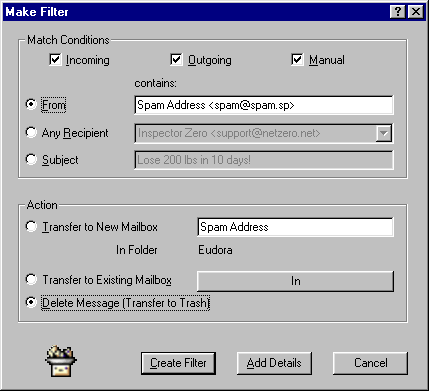 - Verify that the email address in the From text box is the email that you want sent to the trash.
- Check the circle next to Delete Message.
- Click on Create Filter.
- If you are prompted to save the changes you have made, click on the Yes button.
The next time that you check your email, Eudora will search the headers of each message looking for the text that you entered in step 3. If this text is found anywhere within the headers, the message will be moved to the Trash. You may wish to look through your Trash for a few days to ensure that you are not filtering any wanted email. To organize email into folders: - Locate the email message from the sender who you want to filter.
- Go to the Special menu and select Make Filter.
- Verify that the email address in the From text box is the email that you want sent to a new folder.
- Check the circle next to Transfer to New Mailbox.
- Give the new mailbox a different name, if necessary.
- Click on Create Filter.
- If you are prompted to save the changes you have made, click on the Yes button.
Now whenever email comes to you from the email address you just specified, it will bypass your Inbox and go straight to your new mailbox.
| 



 My Password