How do I Enable or Disable Email Scanning in Norton AntiVirus Online? Email Scanning helps protect your computer against attack by viruses or other malware attached to incoming emails by scanning both incoming and outgoing messages. To configure Email Scanning in Norton AntiVirus Online: - Start Norton AntiVirus Online and click on the Norton AntiVirus Online tab.
- Click Settings bar.
- Click Norton AntiVirus Options.
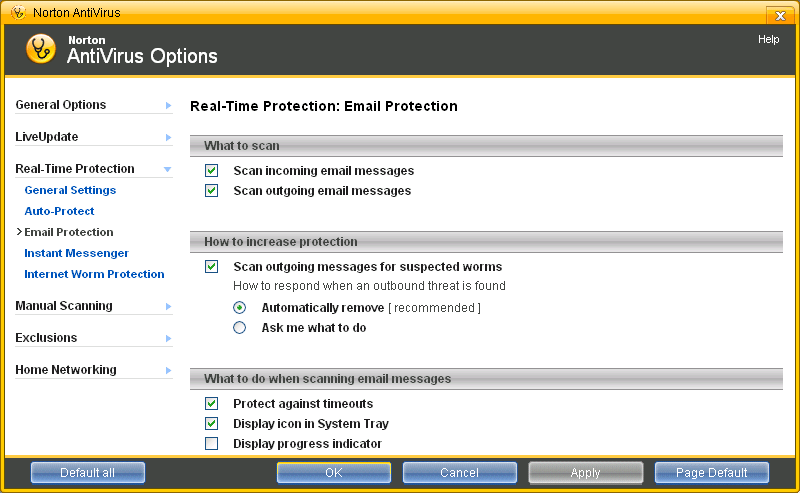
- Click Email Protection under Real-Time Protection.
- To enable Email Scanning, place a check in the boxes next to Scan incoming Email and Scan outgoing Email.
- To turn off Email Scanning, uncheck the boxes.
- Click OK when finished.
 Note: If you turn off Email Scanning you'll see a Security Request dialog box asking you to select how long Email Scanning should be turned off. Choose the time from the drop down menu, and then click OK. If you need any further assistance, please click here for a list of available support options.
Related Items:
| 



 My Password