Installing and Activating Norton AntiVirus Note: For Norton 2011 product information, please click here. You will need a copy of the Norton AntiVirus software and your activation PIN before you begin. We recommend that you install the software from a CD-ROM. If you don't have a CD, please click here to order one at no additional cost. To Install and activate Norton AntiVirus A. Check to see if the computer meets the minimum system requirements In order to run Norton AntiVirus, your computer must meet the following minimum system requirements: - Windows 7, Vista, or XP.
- 300 MHz or faster processor.
- 256 MB of RAM.
- 300 MB of available hard disk space.
B. Prepare your computer for installation
Remove any other antivirus or firewall programs you may have on your computer: - Click the Windows Start button and then click Control Panel.
- Click on Add/Remove programs. [In Windows Vista or Windows 7, click Uninstall a Program.]
- From the list of installed programs, click any other antivirus or firewall program that you want to remove, and then click Remove or Uninstall.
- Click Remove All to confirm that you want to uninstall the product.
- Click Restart Windows Now (Recommended), and then click Finish.
C. Install and activate Norton AntiVirus - You can install and activate Norton from a CD or a downloaded file:
- Insert the CD into your computer's CD-ROM drive (if you are installing from a download, double-click the file you downloaded and proceed to step d).
- Place a check in the box next to Norton Security Software, and click Next.
- When the installation is complete, find and open the Norton Security Software folder on your desktop.
- Double-click on the NAV2010_EN icon to begin the installation.
- If you do not want to join Norton Community Watch, uncheck this option. By default, this option is checked.
- Click OK to begin the installation, or click Install Options to change where Norton installs, and then click Browse to locate the new location.
- Click the User License Agreement, read the User License Agreement, and then click OK.
- Click Agree and Install.
- After completing the installation, Norton AntiVirus launches automatically.
- Click the Activate Now button.
- Type in your PIN, and then click Activate.
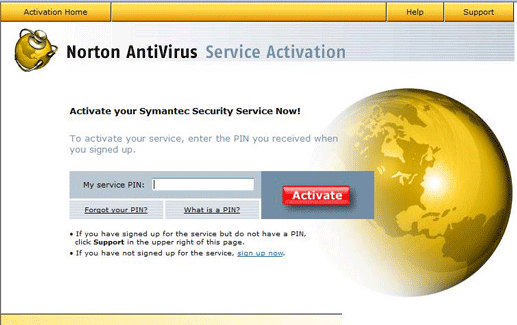
- Type a name for your computer (or just leave the default name) then click Activate.
Return to Norton AntiVirus Index page
| |




 My Password